
No footage — how do you still make a video?
No footage at all? Five ways to still make a video.
People often say Make a 10-second birthday greeting with colorful balloons floating upCut the first 10 seconds and add a title cardAdd subtitles to this clip
You say:
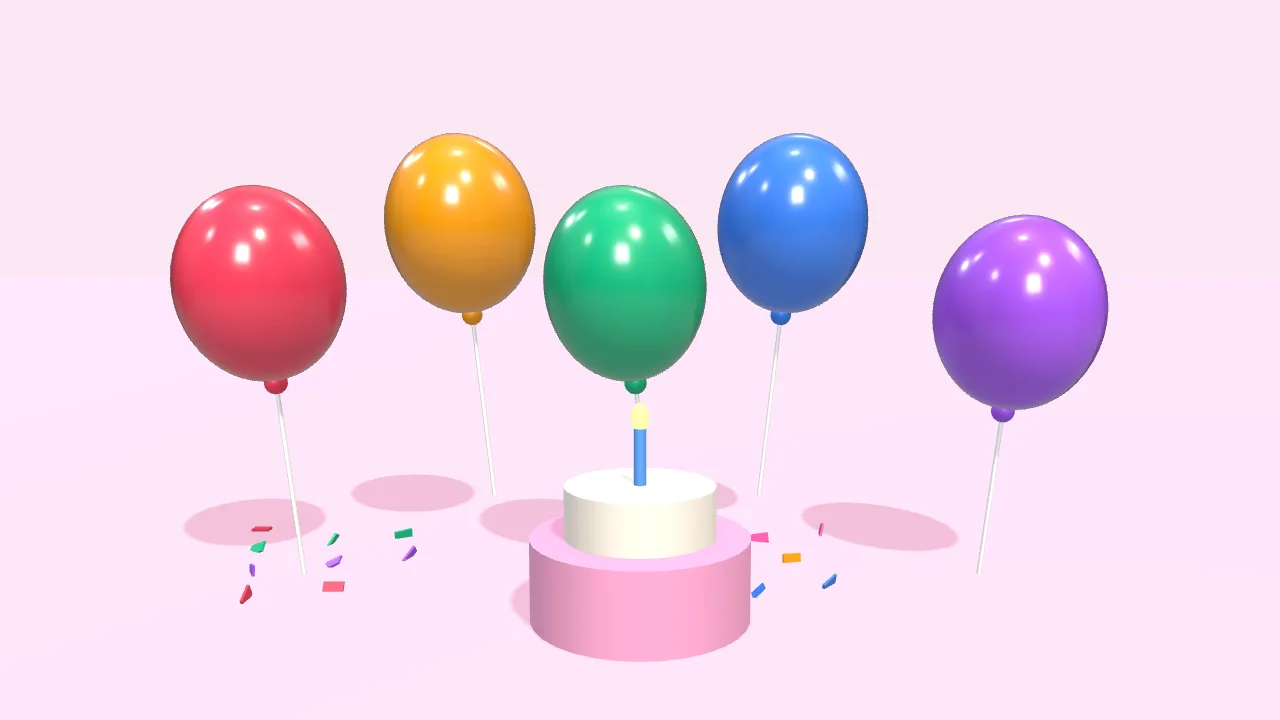
Make a 10-second birthday greeting: colorful balloons float up, then “Happy Birthday” appears
- Set up a 3D scene
- Add 5 balloons that float up
- Add a cake and falling confetti
- Add the text with a pop-in
- Export the 10-second video
You say:
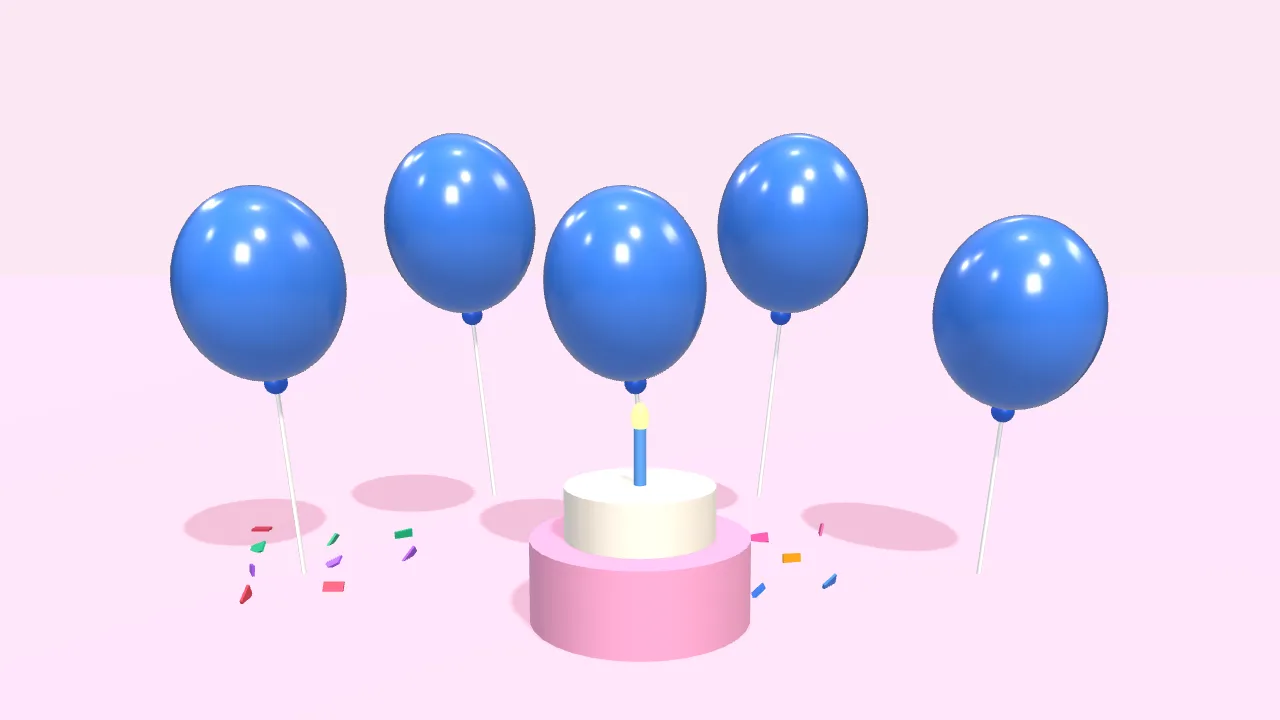
Bigger text in yellow, and make the balloons blue
- Larger font size
- Color white → yellow
- Balloons → blue
You say:
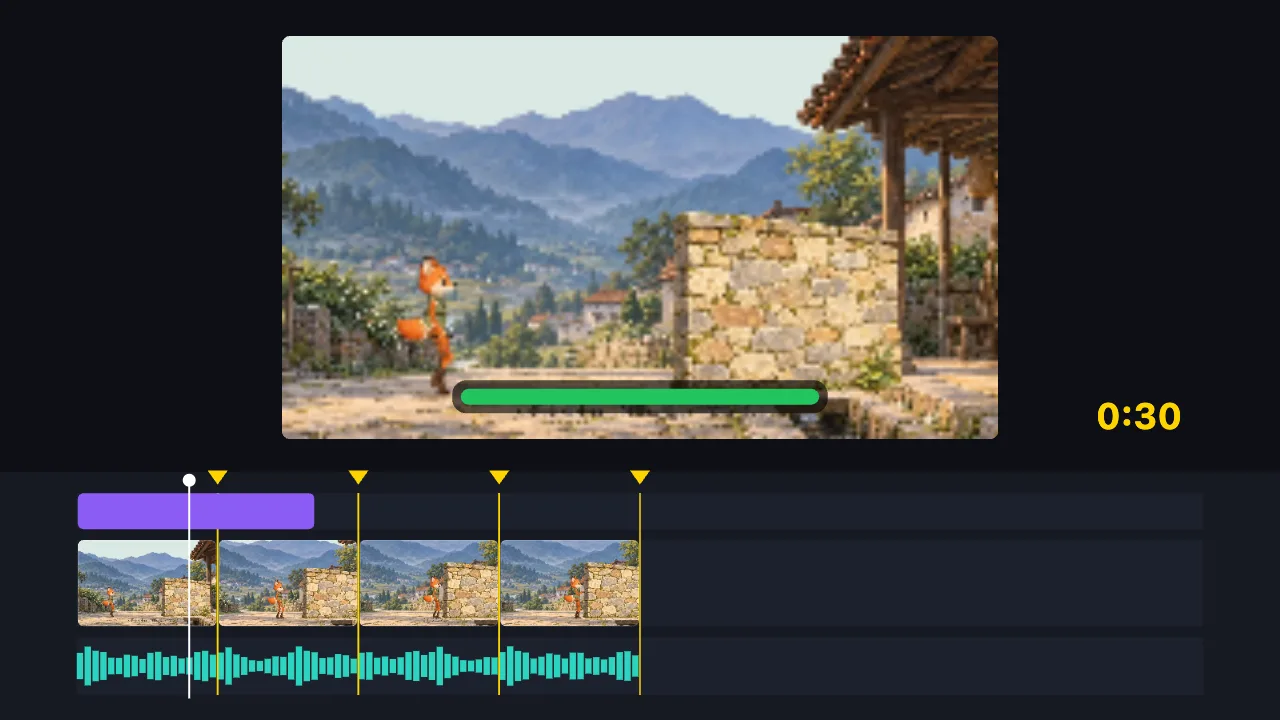
Cut this 2-minute clip to 30 seconds on the music beats, and add a title
- Find the music beats
- Split into 8 parts on the beats, drop the dull ones
- Add the title
- Export the 30-second video
You say:
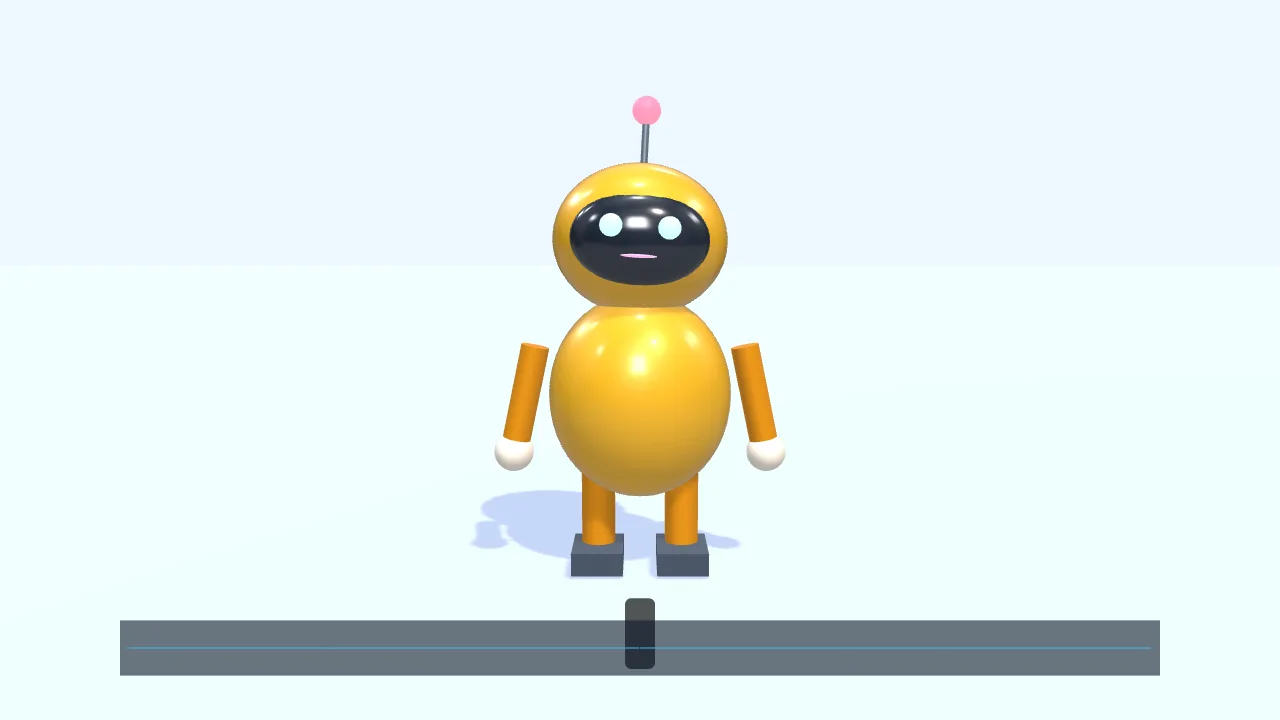
Have a character walk in from the left and talk along with this voice clip
- Add a small 3D robot
- Walk to the center and wave
- Drop in a voice clip
- The mouth opens and closes with the voice
- Add subtitles
You say:
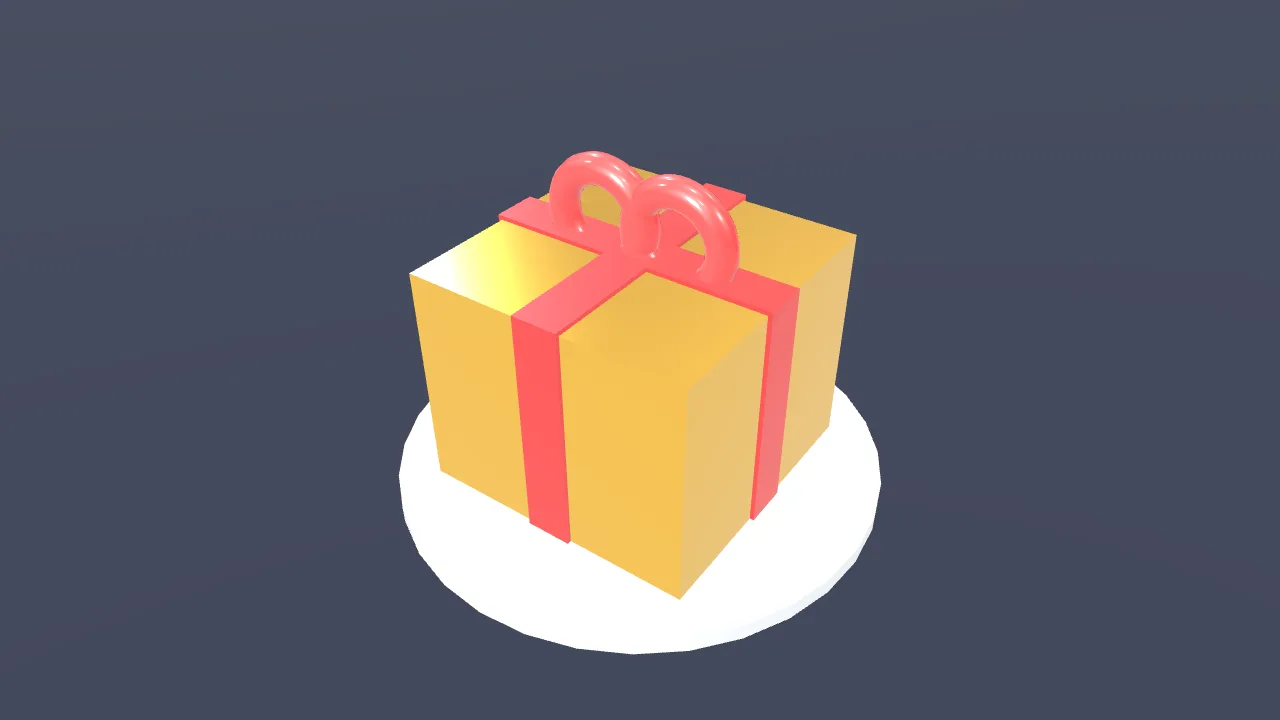
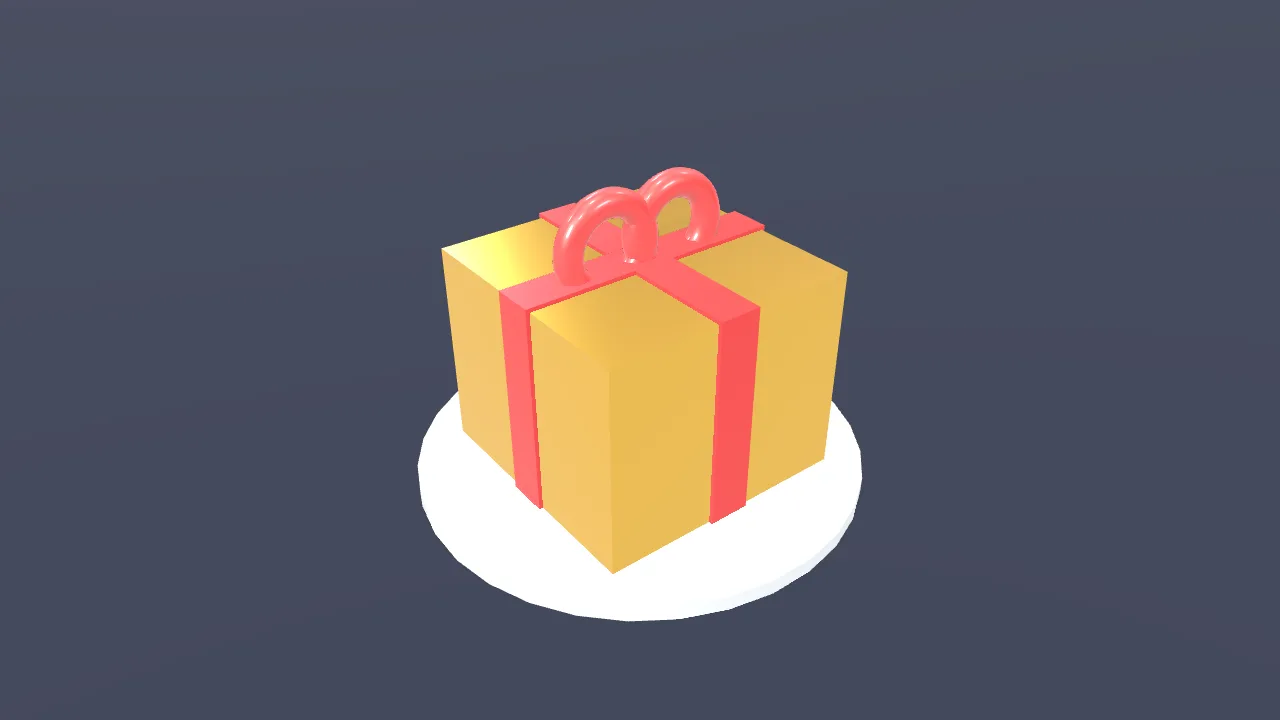
Make a gold gift box spin once, then show “New arrival”
- Create a 3D scene
- Add a gift box
- Give it a gold metal finish
- Add two lights
- Spin it once
- Show “New arrival”
You say:
Add a “New arrival” title animation over the gift box
- Add a built-in title motion
- Set the title to “New arrival”
- Export the 8-second video
No video-generation model and no queue: the AI writes a timeline, and your browser draws it.
The AI can’t: generate real live-action footage · fix blurry video · remove existing watermarks · create a 3D model file from nothing
With no video files at all you can still finish a video: have the AI animate one sentence, use pure text animation, draw your own (frame by frame or with bones), record your screen or voice, or use a template. This page walks through those five ways — all free, no sign-up.
Lots of people get stuck at step one: they want to make a video but have nothing to start with. You can make a complete video without any footage — here are five ways.
The quickest: tell the AI one sentence and let it make motion graphics, a 3D scene or a character that walks and talks on the spot. The second is pure text animation — some copy with layout and motion is a short video in itself.
The third is to draw it yourself: frame by frame, or attach parts you drew to bones and pose them. The fourth is recording your screen or voice — your screen and your voice are the material. The fifth is a template: just replace the text.
FAQ
- Is a video made with no footage at all worth watching?
- Yes. Text animation, motion graphics, character animation and simple 3D product shots are established video formats — plenty of explainers and brand content use them. It is a different style from live action, not a second-rate substitute.
- So can it generate live-action footage?
- No, this site does not generate live-action video. If you need real footage, shoot some on your phone or use licensed clips from a free stock site.
- What about background music?
- There is no music library here, so bring your own. Or skip music altogether — a text animation with the right pacing works without it.
- Is all of this free?
- None of the five needs an account or payment, and exports carry no watermark. Only the AI features that go through TutuDrive (placing generated images on the timeline, having the AI listen to audio) need signing in.
- Can I use the result commercially?
- The built-in templates, text animations, graphics and 3D basic shapes are free to use, and we claim no rights over the finished video.